

Mac mini Hardening: Encryption, Backups, Boot and Power
 by Johannes Hoppe
My ground station runs around the clock and is reachable from anywhere. Convenient, yes. But it is also a physical device someone can carry away, and it depends on power. This article hardens it against three cases: theft, a restart, and a power cut. And there's a contradiction at the heart of it: the very encryption that protects against theft locks me out on the next reboot, exactly when I'm not sitting in front of the machine. How I still reach it anytime, I show here.
This is the second part about the ground station. The first article covered the why and the setup. Now it's about hardening it. This part stands on its own.
Contents
- Encrypting the disk
- Backups: encrypted too
- The catch: a password at the worst possible moment
- Power: shut down cleanly before the battery runs out
- Replicate the setup
- Conclusion
Encrypting the disk
The mini sits in my cabinet, next to the NAS, the Fritzbox, and the switch. It is small, it is quiet, and that also makes it easy to carry away. The disk holds half my working life: repos, keys, the agent sessions from Your Chats Are Your Capital. Without protection, whoever physically removes the mini would have all of it.
So my disk is encrypted with FileVault, Apple's full-disk encryption in macOS. For me that is basic hygiene, not just on an always-on machine. The benefit is easy to state: if the device is taken while powered off or locked, the disk is useless without my password. The thief gets hardware, not data.
💡 Tip: You turn FileVault on in System Settings under Privacy & Security → FileVault. Once enabled, the encryption runs in the background; you notice nothing in daily use.
Backups: encrypted too
Encryption protects against unauthorized access. It doesn't help against data loss, and data loss has many causes: a dying disk, a wrong command, an agent doing something stupid. That's why backups belong in every professional setup, regular and automatic. They're not an agent-specific thing; they're basic hygiene.
In my case, Carbon Copy Cloner (CCC) handles it. It backs the disk up to an external drive, on a schedule, without me having to think about it. The backup drive is encrypted just like the main disk. An unencrypted backup makes the main disk's encryption worthless. Whoever walks off with the external drive would otherwise have everything FileVault protects on the mini.
CCC can back up to an encrypted drive for this: you format the external drive as encrypted APFS (Apple's file system), and CCC backs up to it.
Which drive? I prefer a classic spinning hard disk over an SSD. An SSD that sits unpowered in a drawer for a long time can lose data over time, as the charge in the memory cells leaks away. How quickly that happens in practice is debated, but for a backup that sits untouched for months, I don't take the risk.
In concrete terms, I use a 3.5-inch desktop drive with its own power supply, such as the WD Elements Desktop. This format offers the large capacities at the best price, with room to spare for full backups. The separate power supply is no drawback: a 3.5-inch disk needs more power than a USB port delivers. In my setup it runs off the UPS rather than the mini, more on that shortly. I've used Western Digital for years and haven't had a drive die on me yet. Whether that's representative, I can't say. The WD Elements comes from 4 to over 20 TB; pick the size to match your internal disk.
ℹ️ Note: Amazon links in this article are affiliate links. If you buy through them, I get a small commission, at no extra cost to you.
CCC doesn't just mirror the current state. Through snapshots, point-in-time captures of the APFS file system, it also keeps older versions. That's why the drive should be noticeably larger than your data: Bombich recommends roughly twice the capacity of the source. The payoff: if an agent wipes or mangles a file, you restore it from an earlier version.
💡 Tip: You encrypt an external drive in Disk Utility (format APFS (Encrypted)) or via right-click in Finder. You can store the password in the keychain, so the drive mounts automatically for the scheduled backups.
The catch: a password at the worst possible moment
Now the flip side of encryption. After every restart the mini hangs at the pre-boot lock: only once the FileVault password is entered does the disk decrypt, the machine boot through, and the services start. At that point there is no network yet. An SSH login doesn't help, and on a headless machine (no monitor and keyboard) you are locked out.
I need a screen and a keyboard all the way down to the boot screen, remotely. My solution is a JetKVM, a small KVM-over-IP device. KVM stands for keyboard, video, mouse: all three over the network. It connects to the mini over USB and presents itself there as a keyboard, and it captures the video over HDMI. On every restart I type the FileVault password through it once, and the mini boots through. That keeps the disk encrypted and still lets me reach every boot step.
I deliberately chose the JetKVM because it is open source (GPL-2.0, code on GitHub). Many KVM-over-IP devices are closed source. For a device that transmits keyboard and screen over the network, I want auditable code. You can buy it directly from the maker at jetkvm.com, but then it ships from China with a correspondingly long wait. It's faster via Amazon: dispatched by Amazon, delivered within a few days.
Two settings take the edge off the boot problem:
- For planned restarts it even works without a password:
sudo fdesetup authrestartunlocks automatically on the next reboot, without locking yourself out. pmset autorestart 1brings the mini back up on its own after a power cut. Without this setting it would stay off, waiting for the physical power button you can't reach remotely. Entering the FileVault password via the KVM then stays the one manual step.
Remotely especially, this pays off. On vacation I don't want to worry about whether the mini comes back up after a power blip, and I certainly don't want to ask a relative to drive to my house and switch the machine on. Autorestart brings it back; I type the FileVault password via the KVM from the camper van.
💡 Practical tip: At that early boot stage, only the mini's front USB ports work for me; the rear ones come up later. I can't say for certain why. So plug the JetKVM's USB into a front port, and the keyboard is recognized at the pre-boot screen. The video over HDMI can stay in the back.
Encryption and encrypted backups each require a password at boot, and the KVM is what lets me enter that password remotely. Without it, an encrypted, headless machine would be a contradiction in terms.
Power: shut down cleanly before the battery runs out
That leaves the third case, the power cut. Most developers today work on a laptop, and that makes an old spectre disappear: a thunderstorm rolls in, and you worry whether the power is about to flicker. The battery carries you over every fluctuation; you don't even notice it. The mini is different. It has no battery, it forgives you nothing. Once the power is gone, everything is gone: the unsaved work, all running agents, the whole state. Brutal. After that it's boot everything back up, window by window, session by session (and type the FileVault password once via the KVM).
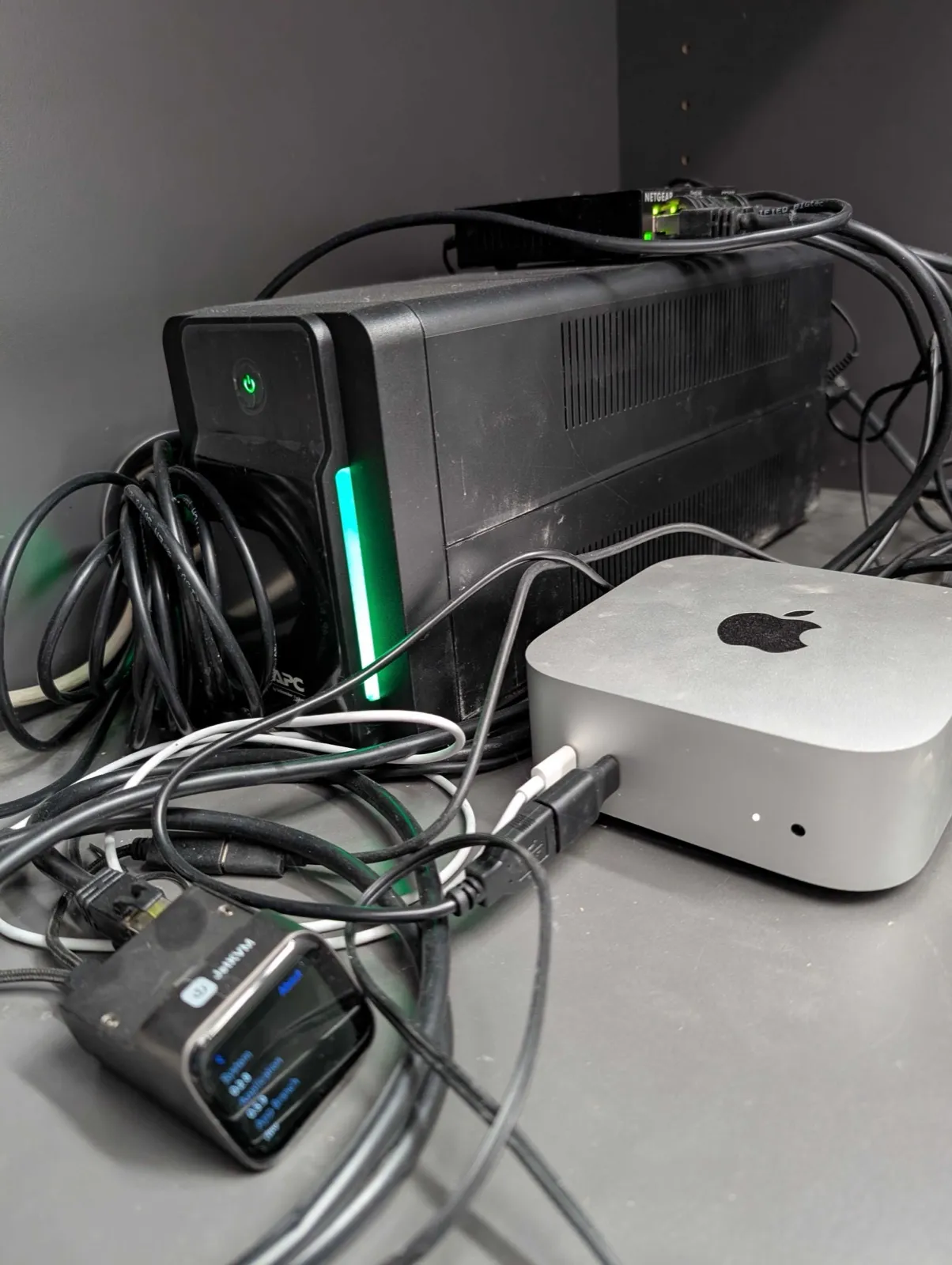
So the mini runs on a UPS (uninterruptible power supply), an APC Back-UPS BX750MI-GR. Plenty of reserve and enough capacity to power the JetKVM and the switch alongside the mini. APC is simply the standard for UPSes, boring in the best way: you buy one, and it runs for years without you thinking about it again. Exactly my kind of thing.
The UPS data cable goes over USB into a front port of the mini. For reasons I can't explain, the connection on the rear ports was pretty unreliable; macOS kept losing sight of the UPS, which left the watcher blind. Since it sits in front, just like the JetKVM's keyboard, pmset -g batt reports the Back-UPS steadily. It doesn't look pretty, but it does the job.
The whole network chain matters. The mini's UPS also powers the JetKVM and the switch. The Fritzbox router and the fiber connection hang on a second UPS. So during an outage the whole network stays up: the mini reaches the Fritzbox over the wired path mini → switch → Fritzbox, and behind it the provider's fiber box. (Yes, I finally have fiber. 😎) The provider's signal doesn't depend on my house power; I only have to keep my own fiber box and the router running, which is exactly what the second UPS is for. So I keep surfing while the rest of the house is dark. That wired path is what lets the alert mails get out during the outage.
And when the battery runs low? A small watcher handles mail and shutdown itself. The script I named ups-notify.sh runs as a system service (a LaunchDaemon as root) and polls pmset -g batt every 20 seconds:
- As soon as the mini runs on UPS battery, a mail "STROMAUSFALL" (power cut) goes out.
- If the battery drops to 20 percent or below, a second mail "SHUTDOWN" follows.
- Then the mini shuts down in a controlled way (
shutdown -h now).
When power returns, a mail "Strom wieder da" (power back) arrives. A second watcher mails if the UPS disappears from USB entirely, so the first one never runs blind unnoticed. The mails go out via Resend.
The technically savvy reader will now ask: Can't macOS do this itself? macOS does offer settings for it (pmset -u haltremain/haltlevel/haltafter) that are meant to shut down on a low UPS battery. On my M4 mini, though, that didn't trigger in testing. It's not the only pmset setting you can't rely on under Apple Silicon. So my own script handles it, and that works reliably.
💡 Note: The script shuts down at my own threshold and sends me the warning mails beforehand. Above all, I can test the whole flow without waiting for a real power cut. You can't do that with a built-in setting.
The core is a short loop. The three stages from above sit right inside it:
HALT_PCT="${HALT_PCT:-20}"   # shut down cleanly at <= X% UPS battery
POLL="${POLL:-20}"           # seconds between checks

state="init"                 # init | AC | UPS
while :; do
  batt="$(pmset -g batt)"
  src="$(pm_src_of "$batt")" # "AC" or "UPS"
  pct="$(pm_pct_of "$batt")" # battery level in percent

  # Mail only on a real switch, in the background (the loop must never block on a mail)
  if [ "$state" != "init" ] && [ "$src" != "$state" ]; then
    if [ "$src" = "UPS" ]; then
      notify "STROMAUSFALL - $HOST auf USV-Akku" "Now on battery (${pct}%). Shuts down at <= ${HALT_PCT}%."
    else
      notify "Strom wieder da - $HOST" "Back on mains power (${pct}%)."
    fi
  fi
  state="$src"

  # Low battery -> clean shutdown. Double-guarded: only on UPS AND low battery.
  if [ "$src" = "UPS" ] && [ -n "$pct" ] && [ "$pct" -le "$HALT_PCT" ]; then
    notify_now "SHUTDOWN - $HOST (Akku ${pct}%)" "Shutting down in a controlled way now."
    /bin/sleep 2
    /sbin/shutdown -h now "USV-Akku niedrig (${pct}%)"
    exit 0
  fi

  /bin/sleep "$POLL"
done
The helpers are small enough that you can assemble the whole thing yourself. pm_src_of/pm_pct_of read the source and battery level from pmset -g batt, and notify/notify_now send the mail via Resend, always in the background, so a network timeout can never block the shutdown:
# parse pmset -g batt: power source (AC/UPS) and battery level in percent
pm_src_of() { case "$1" in *"'AC Power'"*) echo AC ;; *) echo UPS ;; esac; }
pm_pct_of() { printf '%s' "$1" | grep -oE '[0-9]+%' | head -1 | tr -d '%'; }

# mail via Resend; API key, sender, and recipient come from the environment
_resend_post() {
  curl -s -o /dev/null -w '%{http_code}' --max-time "${3:-15}" \
    -X POST https://api.resend.com/emails \
    -H "Authorization: Bearer ${RESEND_API_KEY}" -H "Content-Type: application/json" \
    -d "{\"from\":\"${RESEND_FROM}\",\"to\":\"${RESEND_TO}\",\"subject\":\"${1}\",\"text\":\"${2}\"}"
}

# blocking, three tries against a brief network hiccup
resend_send()    { for i in 1 2 3; do case "$(_resend_post "$1" "$2" 15)" in 2*) return 0 ;; esac; /bin/sleep 10; done; return 1; }
# once, short timeout, in the background (for the shutdown path)
resend_send_bg() { ( _resend_post "$1" "$2" 5 >/dev/null 2>&1 ) & }

notify()     { resend_send "$1" "$2" & }    # transition mail, retries in the background
notify_now() { resend_send_bg "$1" "$2"; }  # shutdown mail: once, short, in the background
Why all this effort? A hard power cut can truncate the currently active session .jsonl, the file in which the running agent session is logged line by line. In the worst case it's left at zero bytes. That's happened to me several times after an abrupt reboot, always when a write landed at that exact moment. With busy agents, that's constantly the case. And it doesn't stay local: the mini continuously mirrors its files to my other devices (how that works is in part 1). That mirror then also replicates the broken version, and the damage ends up on every machine. A clean shutdown mitigates that.
Replicate the setup
The components I use:
- UPS: APC Back-UPS BX750MI-GR. Keeps the mini, the JetKVM, and the switch running through a power cut.
- KVM over IP: JetKVM, open source. Directly from the maker, or faster via Amazon.
- Backup software: Carbon Copy Cloner. Backs up to an external drive on a schedule.
- Backup drive: a spinning 3.5-inch hard disk such as the WD Elements Desktop, formatted as encrypted APFS.
- Encryption: FileVault, included in macOS.
Conclusion
Theft is defused by encryption, of the disk and of the backups. The restart becomes manageable because I type the FileVault password remotely via the KVM. The power cut is caught by the UPS, and a small script shuts the mini down in time and cleanly.
The linchpin in all this is the KVM. Encryption without a way to enter the password at boot would be a dead end on a headless machine. Only the KVM makes "encrypted" and "headless" a pair that fits together.
This is a one-time setup effort and quiet afterwards. My advice: start with encryption; it's enabled in two clicks and protects immediately. The rest you add at your own pace.
That brings the ground station series to a close. I hope it helped, and that you now have a base your agents can run on around the clock, secured against theft, restart, and power loss.
Questions, feedback, your own setup? Always welcome, I'm glad about every message. If enough open questions pile up, I'll happily add a third part.
Curious about agentic work in practice? In the workshops at agentic.schule and angular.schule we show how modern AI agents change everyday development.
Keywords:Mac miniFileVaultDisk encryptionBackupCarbon Copy ClonerUPSPower outageJetKVMKVM over IPAgentic Coding
Suggestions? Feedback? Bugs? Please
About the author
 Johannes Hoppe is a trainer and consultant for modern web development. The workshops at angular.schule and agentic.schule focus on Angular in practice – and increasingly on agentic development with AI agents like Claude Code.